The Toolbar Popup
The toolbar popup is the compact control center from the browser extension icon. It is for quick checks and toggles, not deep editing.
Main Header
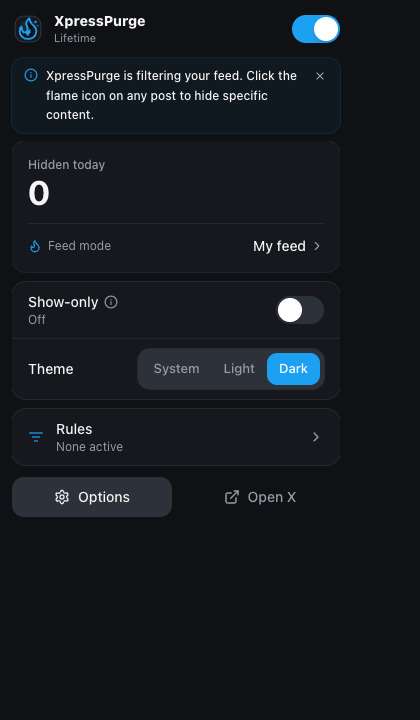
Popup main view: master toggle, hidden today, feed mode, quick controls
- XpressPurge brand
- Current plan label
- Upgrade for Free users
- Main On/Off switch (global filtering)
When filtering is off, XpressPurge does not apply rules on X.
Status Card
Depending on layout settings, the popup shows a single status card:
- Hidden today — the big number: posts hidden today
- Hidden this week — optional weekly line (Pro layout)
- Feed mode — the active feed mode's name; click it to open Options → Modes and switch modes
There is no presets subview. Context switching is done with feed modes in Options.
Quick Controls
Depending on plan and popup layout:
- Show-only — Pro; needs at least one Show-only rule
- Hide style — Remove vs Receipt
- Theme — System, Light, or Dark
A Rules drill-down row shows the active-rule count and opens the rules subview. On Free, the popup still includes the main switch, Hidden today, rules access, mode label, theme, quick access, and footer actions.
Rules Subview
Searchable list of rules:
- search by type, action, keyword, handle, or domain;
- toggle rules on and off;
- see Pro-locked actions;
- open Options for full management.
The popup does not create or delete rules. Use Options → Filters → Exact rules.
Footer
- Options — full dashboard
- Open X —
https://x.com/home
Why It Stays Compact
Deep setup (modes, kits, Smart topics, analytics) lives in Options. Use the popup for on/off, a quick read of today’s impact, and jumping to the active mode.