The Toolbar Popup
The toolbar popup is the compact control center you open from the browser extension icon.
It is designed for quick checks and fast toggles, not deep editing.
Main Header
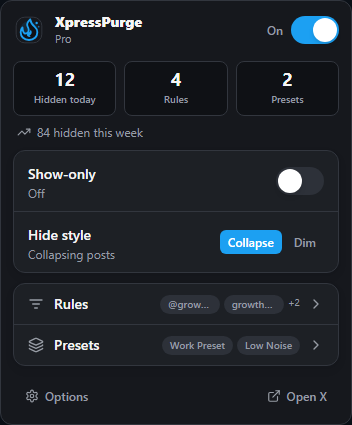
Toolbar popup overview
The top of the popup shows:
- XpressPurge brand;
- your current plan label;
- an Upgrade link for Free users;
- the main On/Off switch.
The main switch controls Filtering globally. When it is off, XpressPurge stops applying rules to X.
Metrics
The popup can show:
- Hidden today: how many posts were hidden today.
- Rules: how many rules are enabled.
- Presets: how many presets are active.
- Hidden this week: optional weekly metric when enabled in popup layout settings.
Click Rules to open the Rules subview. Click Presets to open the Presets subview.
On Free, the standard popup layout does not expose every optional block. Weekly stats, hide style, and active preset chips are part of popup customization in Pro.
Quick Controls
Depending on your plan and popup layout settings, the popup may show:
- Show-only: turns Show-only mode on or off.
- Hide style: switches between collapsing hidden posts and dimming hidden posts.
- Theme: chooses System, Light, or Dark.
Show-only is a Pro feature. It only works when you have at least one Show-only rule.
On Free, the popup still includes the main filtering switch, Hidden today, rules, presets, theme, quick access rows, and footer actions.
Rules Subview
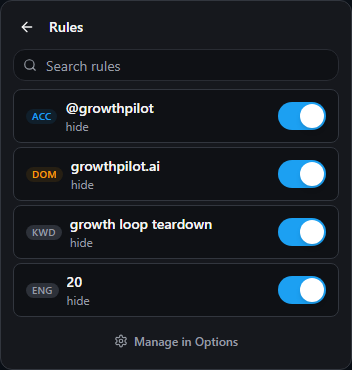
Rules subview in popup
The Rules subview is a searchable quick list.
You can:
- search rules by type, action, keyword, handle, or domain;
- see whether rules are active;
- toggle available rules on and off;
- see Pro-locked rules if they use Pro-only features;
- open Options for full rule management.
The popup does not create, edit, or delete rules. Use Options > Rules for full management.
Presets Subview
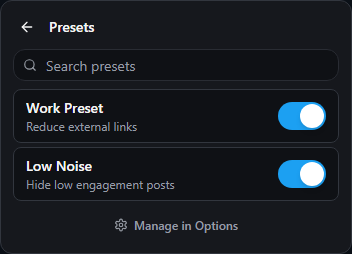
Presets subview in popup
The Presets subview is a searchable quick list.
You can:
- search presets by name or description;
- toggle presets on or off;
- see how many rules each preset contains;
- open Options for full preset management.
Active presets appear first.
Footer Buttons
The footer includes:
- Options: opens the full XpressPurge dashboard.
- Open X: opens
https://x.com/home.
Why the Popup Stays Compact
The popup intentionally avoids endless lists. If you have many rules or presets, use the popup search or open Options.