Quick Flame Menu
The quick flame menu is the fastest way to create rules while using X.
XpressPurge adds a small flame button to detected posts. Click it when you see a post you want to filter.
What the Flame Button Does
The flame button opens a compact menu for the current post.
Depending on the post, the menu can include:
- Hide @handle
- Quick keyword add
- Train rule from this post
- Add new rule
- Open Settings
Hide the Post Author
Use Hide @handle when you want to hide future posts from the same account.
Steps:
- Find a post from the account you want to filter.
- Click the flame button on the post.
- Click Hide @handle.
- XpressPurge creates an account Hide rule.
- Matching posts from that handle are hidden when the rule is active.
This is best for accounts you do not want to see in your feed.
Quick Keyword Add
Use Quick keyword add when a post contains a topic, phrase, or repeated spam pattern you want to hide.
Steps:
- Click the flame button on a post.
- Click Quick keyword add.
- Review the suggested keyword.
- Edit the keyword if needed.
- Click Save rule.
The created rule is a Keyword Hide rule.
Example good keywords:
airdrop
follow for follow
free mint
Avoid overly broad keywords like:
the
ai
Broad keywords can hide posts you may still want to see.
Train Rule From This Post
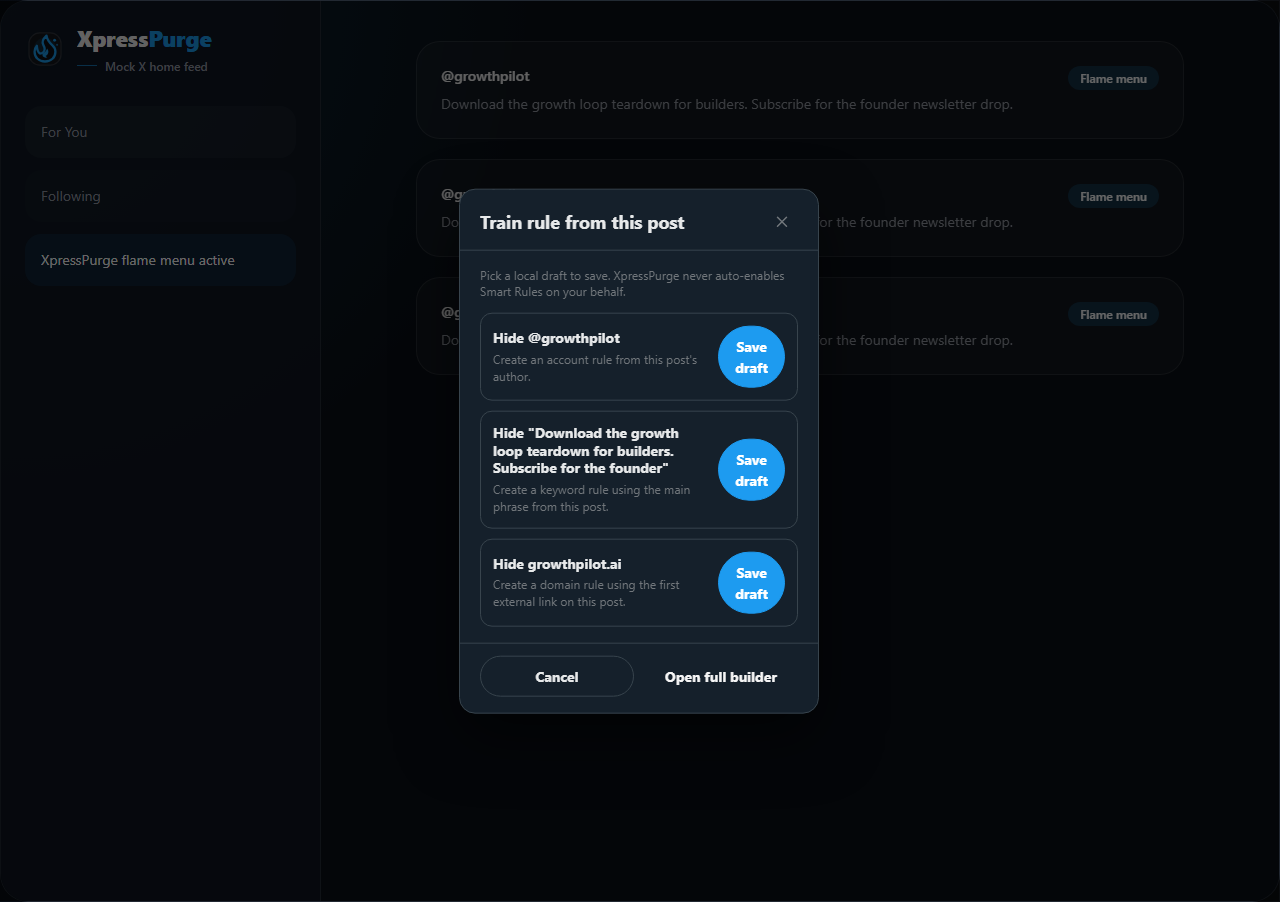
Train rule from post modal
Use Train rule from this post when you want reviewed draft options based on the current post.
Steps:
- Click the flame button on a post.
- Click Train rule from this post.
- Review the proposed account, keyword, or domain rule.
- Click Save draft to save that rule immediately, or open the full builder instead.
Important:
- This is a Pro feature.
- The modal never silently creates or enables a rule for you.
- Duplicate drafts are blocked if an equivalent rule already exists.
- On Free, selecting this entry sends you to the full Options flow instead of opening the training modal.
Add New Rule
Use Add new rule when you want more control than the quick actions provide.
Steps:
- Click the flame button on a post.
- Click Add new rule.
- Choose a rule type:
- Keyword
- Account
- Post contains
- Low engagement
- Link domain
- Choose an action:
- Hide
- Boost
- Snooze
- Show only
- Enter values.
- If you choose Snooze, select how long the Snooze should stay active.
- Choose a preset or leave it as Always active.
- Click Save rule.
Boost, Snooze, and Show only are Pro actions.
When a Snooze rule expires, it turns off automatically. You can enable it again later from the popup or Options page.
Add Multiple Values From the Modal
The in-page modal accepts comma-separated values for text-based rules.
Keywords:
crypto, airdrop, free mint
Accounts:
@example, @another_user
Domains:
example.com, spam-site.com
Post content values:
image, video, quote, externalLink
In the full Options page, these values appear as chips.
Assign a Rule to a Preset
When the modal asks for Preset, choose:
- Always active if the rule should apply whenever Filtering is on.
- A preset name if the rule should only apply when that preset is active.
Example:
- Put work-distraction rules into a Work preset.
- Put crypto spam rules into a Crypto Cleanup preset.
- Leave always-bad account rules as Always active.
Open Settings
Use Open Settings when you want the full Options dashboard.
From Options, you can:
- edit the rule;
- add more values;
- review Smart Rule suggestions;
- move the rule into a preset;
- disable the rule;
- delete the rule;
- view analytics;
- manage Pro, sync, privacy, and account settings.
Closing the Menu
The flame menu closes when you:
- choose an action;
- click the close button;
- click outside the menu;
- scroll the page;
- press Escape.
Troubleshooting the Flame Menu
If the flame button does not appear:
- Confirm XpressPurge is enabled.
- Refresh the X page after reloading the extension.
- Scroll the feed so X mounts new posts.
- Open Options > Help and download diagnostics if the problem continues.
If a quick rule does not apply:
- Check Options > Rules to confirm the rule was created.
- Confirm the rule is enabled.
- Confirm the preset is active, if the rule was added to a preset.
- Confirm the rule is not locked by Free plan limits.
- Refresh X if you recently reloaded the extension.